Copy Link and File Sharing
This guide explains how to copy links to files and folders and share personal files with users within the organization. Both features are only available in secure storage.
1. Copy link
Copies the shortcut link of a file or folder to the clipboard. Users who receive the link will log in to SHIELD Drive and then open the file or navigate to the folder.
- Right-click on the file or folder in the list.
- Select [Copy Link].
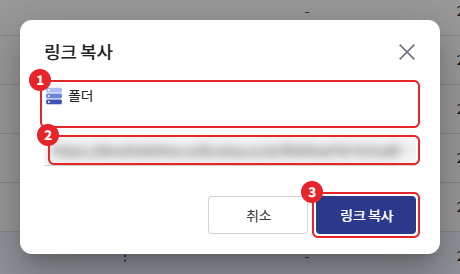
- Check the target name and link in the link copy window.
- Click on [Copy Link].
- "The folder/file link has been copied." When this message appears, paste it into messenger, email, etc. to share.
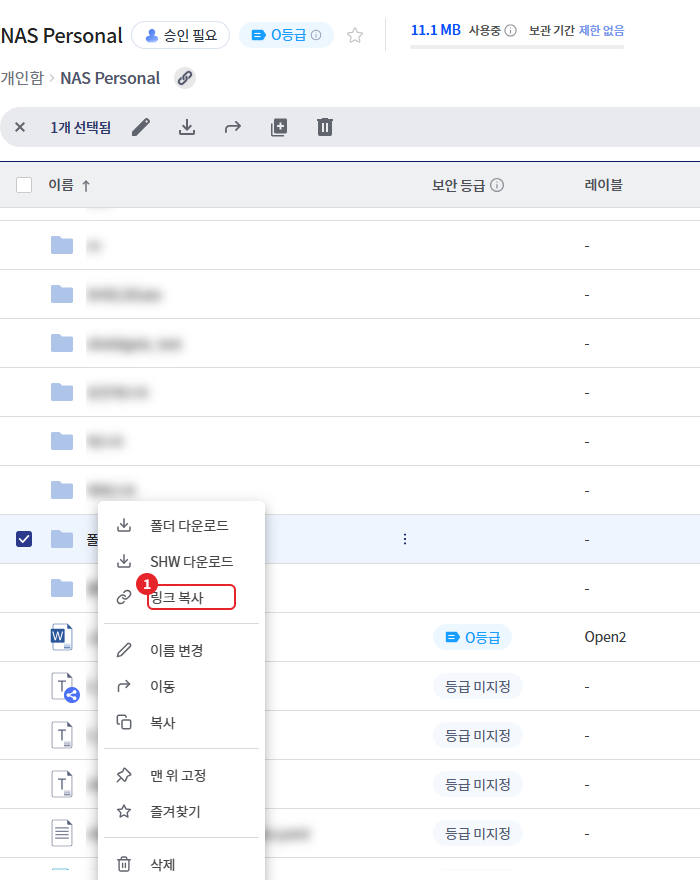
- You can only copy one item at a time. If you select multiple items, the [Copy Link] menu will not be displayed.
- Files that are not synchronized or are in an error state cannot be copied.
- The link only provides the access path. Whether the recipient can open it is determined by the recipient's permissions. (Refer to document 2 for personal files)
- If the copy fails, a message will be displayed saying "Failed to copy folder/file link." Please try again later.
1-1. Copy Current Folder Link
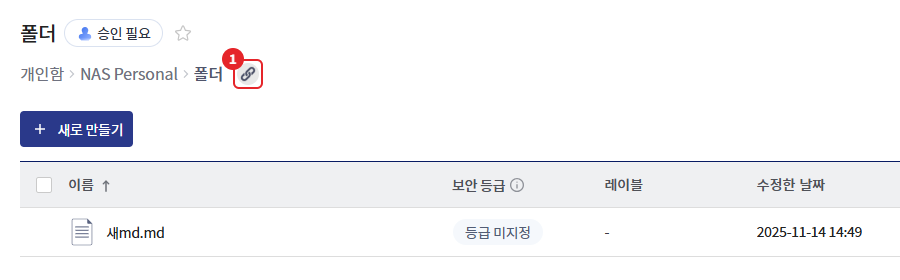
The link to the folder you are currently viewing can be copied using the link copy icon on the right side of the folder path at the top of the list. The subsequent steps are the same as above.
2. Personal File Sharing
Share the personal file with all users in the organization. The shared file can be viewed, edited, and downloaded by users who receive the link.
This feature is only displayed when the administrator has allowed sharing permissions in the personal storage role. Sharing permissions apply only to personal storage, and there is no switch for common storage or shared storage files.
2-1. Share Settings
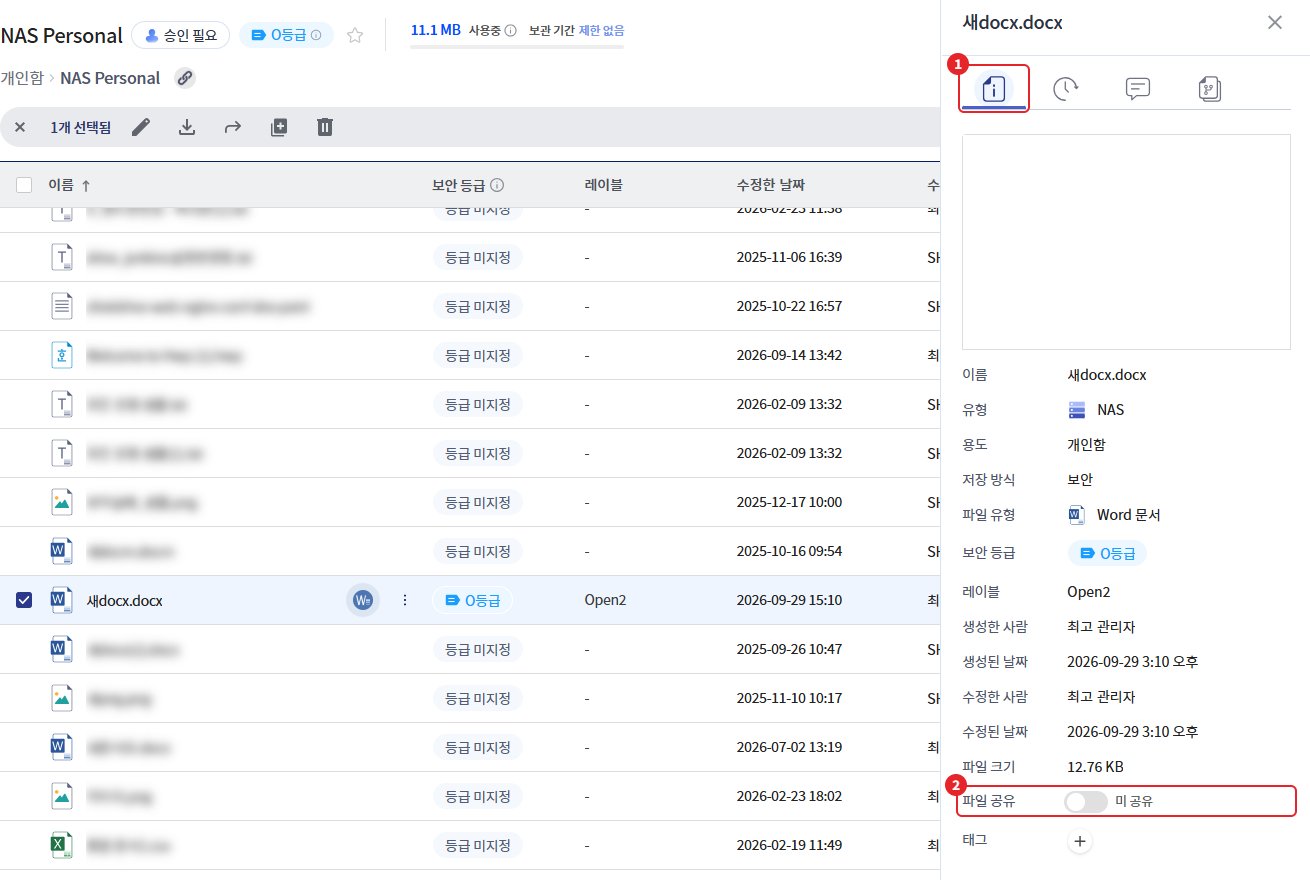
- Select the file to share in the personal folder.
- Click the details icon at the top right of the list to open the right panel.
- Turn on the [File Sharing] switch in the [Detailed Information] tab. The switch indicator changes from "Not Shared" to "Shared".
- A "File Sharing Settings" progress/completion notification will be displayed at the bottom right of the screen.
- Share the copied file link with the user.
When you execute [Copy Link] in the personal file, file sharing is set up automatically. You do not need to turn on the switch separately. Files that are already shared will remain as they are.
| Permissions Granted During Sharing Settings | content |
|---|---|
| Target | All users within the organization |
| Permission | View, Edit, Download |
| How to Receive | Access via link (not displayed in other users' personal folder lists) |
2-2. Share Indicator
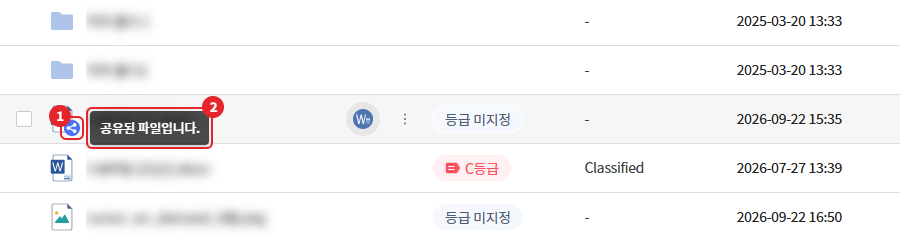
The shared files will have a share icon next to the file names in the list. When you hover over the icon, a tooltip will display "This file is shared."
2-3. Unlink
- Select the shared file and open the [Details] tab in the right panel.
- [File Sharing] Turn off the switch. The display changes to "Not Shared".
- Check the "File Sharing Release" completion notification.
If you unshare, other users will no longer be able to open the file with the link they previously received.
Caution - If the sharing settings fail to set or unset, a notification will appear stating "File sharing settings failed" or "File sharing unset failed," and the switch will revert to its previous state. Please try again after a moment.
3. Screen of the user who received the link
When you open the link, it will take you to the file viewing page where you can check permissions before the file opens. The folder link will take you to the list of that folder. For the process after opening the link, please refer to "File and Folder Management Guide > File Link Viewing Process."
| situation | Action |
|---|---|
| Access permission granted | Opened as web, app, or viewer depending on the extension and storage settings. |
| No viewing permission, download permission granted | The file has been downloaded. |
| Permission Denied | "Permission to open the file is denied. Please contact the administrator." |
| No folder access permission | "Cannot access the folder." |
| The original has been deleted. | "File or folder has been deleted, and the specified path does not exist." |
The overall guide for each status is "File and Folder Management Guide > File Link Viewing Process."